Getting connected
A little connection.
A world to explore.
Connect Genny to your home Wi-Fi, then open her own browser page on your phone.
You’ll need Genny, a phone with a camera and browser, and the name and password of your 2.4 GHz Wi-Fi network. No app is required.
Open Genny’s Wi-Fi setup.
On a first startup without saved Wi-Fi, Genny starts her setup hotspot automatically, after any required touch calibration.
Otherwise, hold the middle of the forehead on her touchscreen steadily for three seconds. Lift your finger when the menu opens, then choose Wi-Fi setup. You can also choose Connect phone → Set up Wi-Fi.
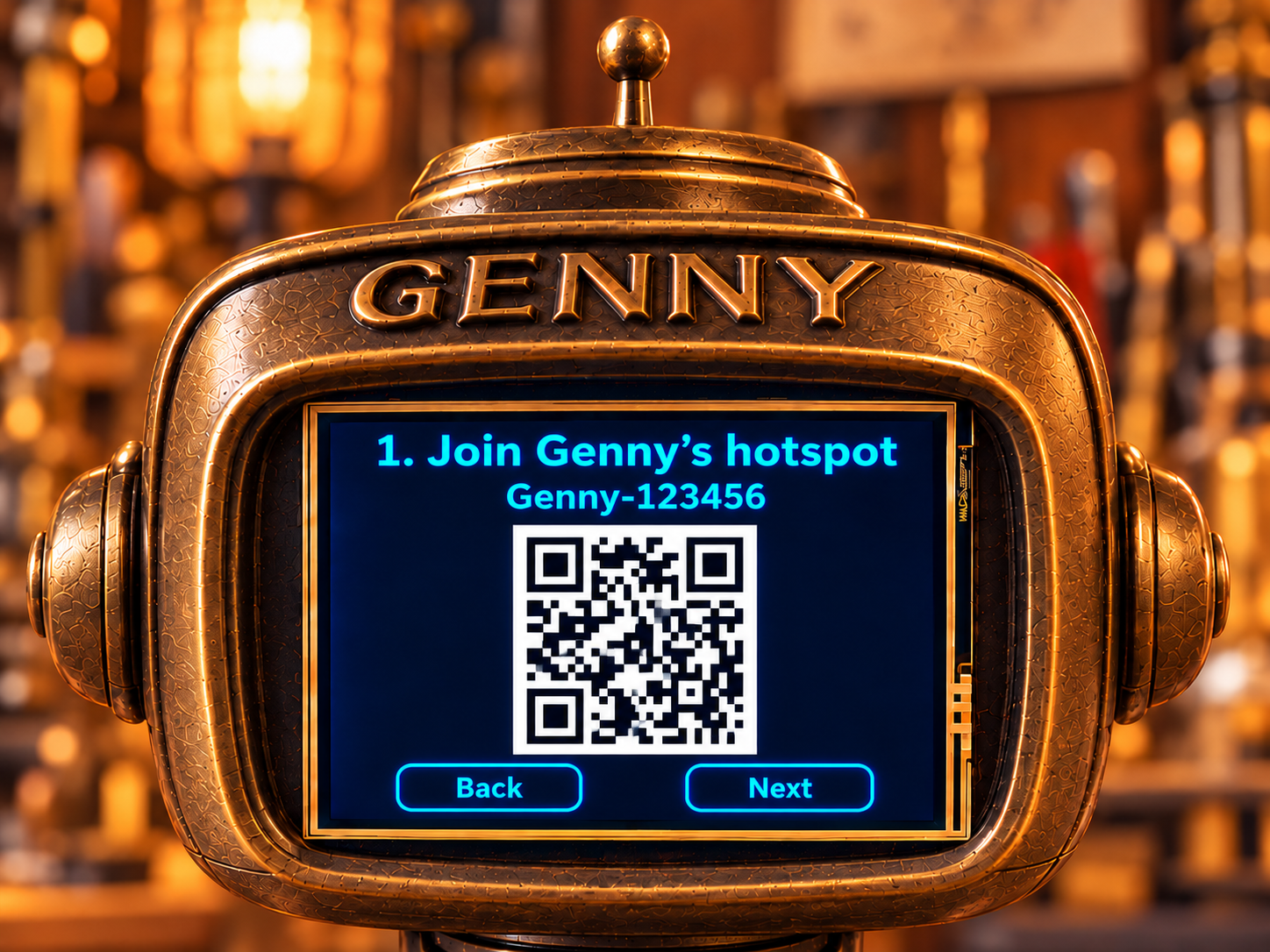
Read the hotspot name and password on Genny. Choose Show QR when you’re ready to connect your phone. A gentle fingernail or touchscreen stylus works better than a soft fingertip.
Join her little network.
- Use your phone’s camera to scan the “1. Join Genny’s hotspot” QR code on Genny’s screen, and accept the invitation to join.
- If scanning isn’t convenient, open your phone’s Wi-Fi settings, choose the exact Genny-… network shown on her screen, and enter her displayed hotspot password.
- If your phone says “No internet”, choose to stay connected. This temporary network connects you directly to Genny; it isn’t your home internet connection.
- Once your phone has joined, tap Next on Genny.
Tell her where home is.
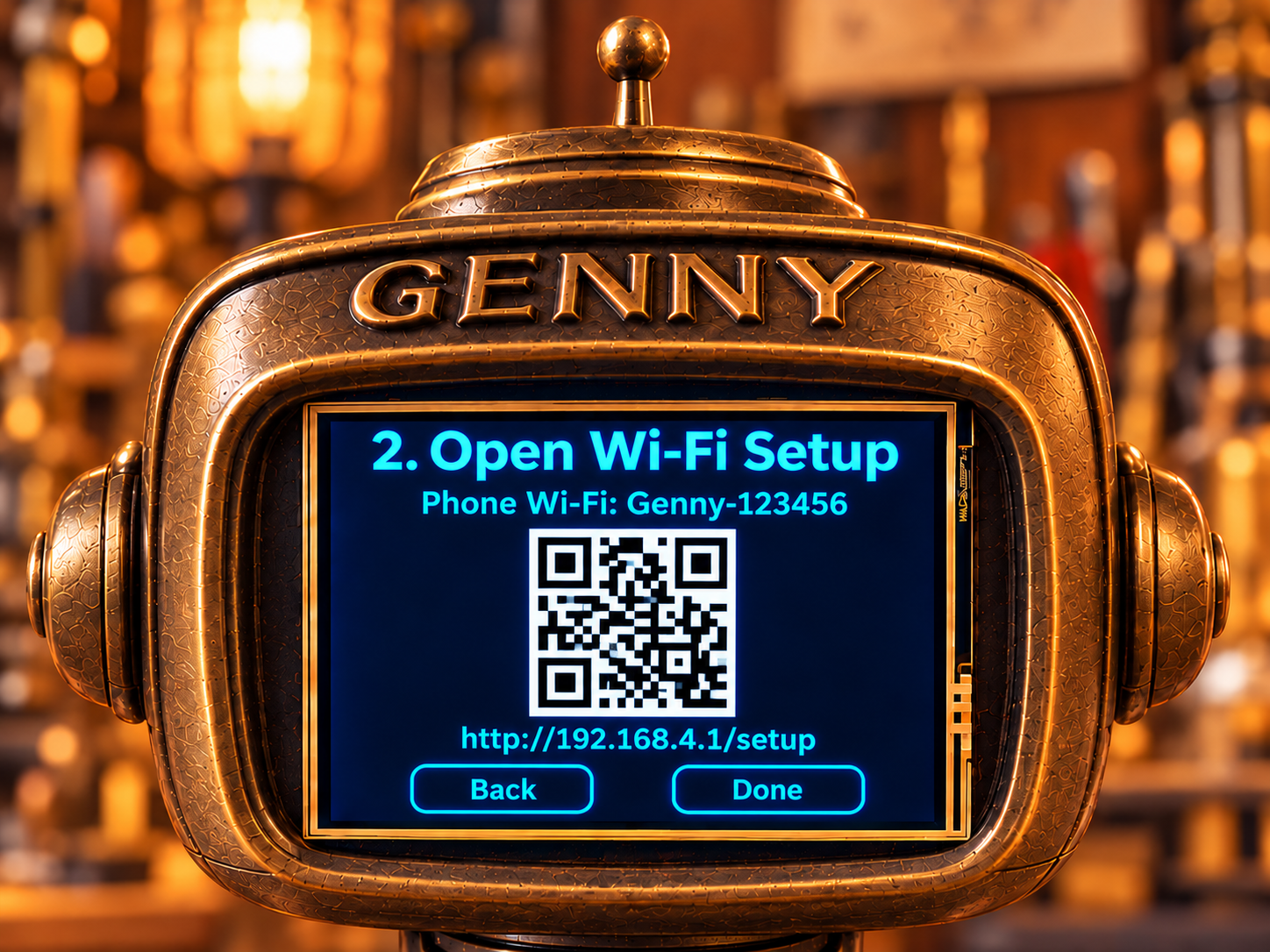
- While your phone is still on Genny’s hotspot, scan the “2. Open Wi-Fi Setup” QR code on Genny. If a setup page opens automatically, you can use that instead.
- If nothing opens, type
http://192.168.4.1/setupinto your browser’s address bar, not a search box. This address works only while connected to Genny’s hotspot. - On the phone’s setup page, choose Find networks, select your home’s 2.4 GHz network, or type its name in Network name if it’s hidden.
- Enter your home Wi-Fi password and choose Connect Genny. This password may differ from the temporary hotspot password.
- Allow up to about 25 seconds for the connection attempt. Watch for Genny’s confirmation.
Her hotspot can briefly disconnect your phone while she changes Wi-Fi channels. Rejoin it if needed and let the setup page reconnect.
You’re connected!
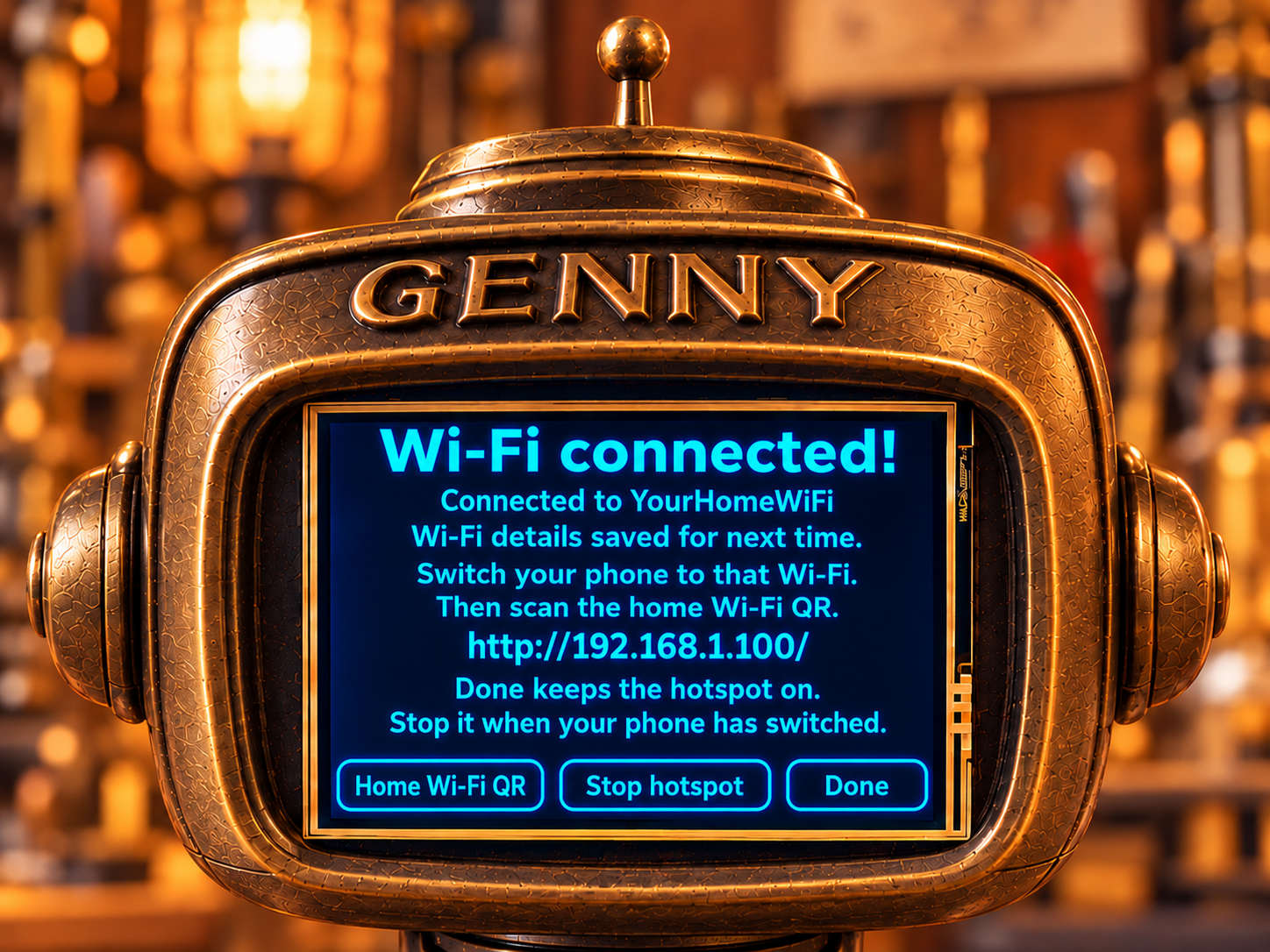
- Wait for “Wi-Fi connected!” on Genny. Check that it names the home network you chose.
- Switch your phone from Genny’s hotspot to that same home Wi-Fi network.
- Tap Home Wi-Fi QR on Genny and scan the code she displays to open her browser page. Or type the home address she shows. The picture’s
192.168.1.100is only an example. - When your phone has switched to home Wi-Fi, use Stop hotspot on Genny to turn off her temporary network.
Done returns to her face but does not stop the hotspot. Stopping the hotspot keeps her saved home Wi-Fi settings and touch calibration.
Genny remembers up to three successfully connected networks and tries remembered networks at startup. If she says she connected but could not save settings, repeat setup before relying on reconnection after a restart.
Next time is simpler.
When Genny is already connected, open her forehead menu and choose Connect phone → Open phone page (QR). Keep your phone on the same home network and scan the current code.
You can bookmark her local browser page. If the bookmark stops working after a network change, get her current address from the QR screen. http://genny.local/ is another option on networks and devices that support it.
Her browser controls work locally without an internet connection. Synchronizing the clock needs internet access.
If the connection needs a nudge.
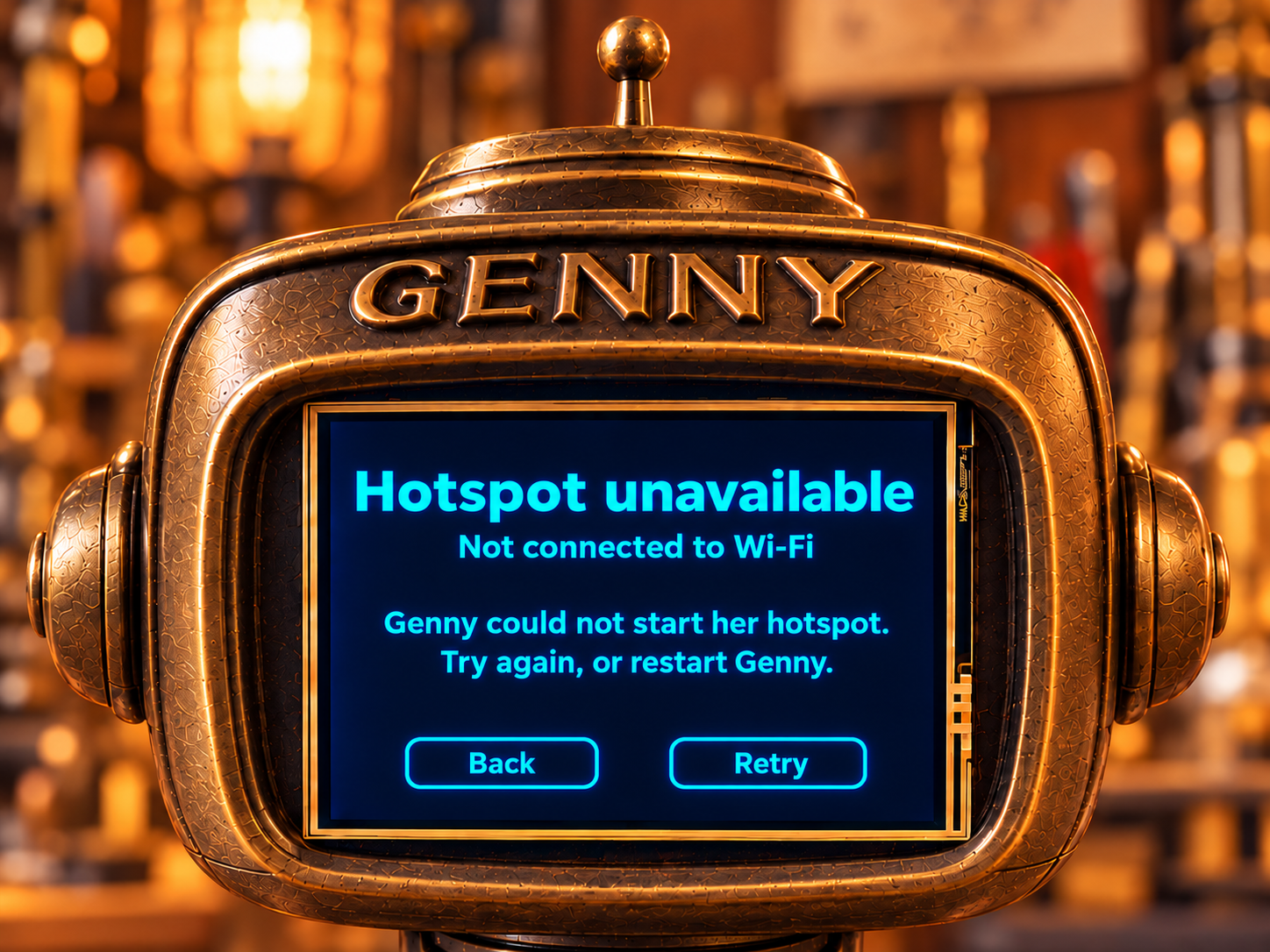
“Hotspot unavailable” means Genny couldn’t start her temporary network—not that your home password is wrong. Tap Retry. If it still fails, restart Genny and try setup again.
My phone leaves Genny’s network because it has no internet.
Reconnect to the network named on Genny’s screen and accept your phone’s option to stay connected or use the network without internet. Then return to the setup page. The exact wording varies by phone.
The QR code or automatic setup popup doesn’t work.
Use the manual route: join Genny’s hotspot through your phone’s Wi-Fi settings, then type http://192.168.4.1/setup directly in the browser address bar. Make sure you are still on her hotspot. The QR codes in this guide are illustrations, not setup shortcuts.
My home network isn’t listed, or the password fails.
Choose Find networks again. Genny supports 2.4 GHz Wi-Fi, not 5 GHz-only networks. You can type a hidden network’s name manually. Check spelling, capitalization, and the home network password. A failed connection attempt leaves the hotspot running so you can correct the details and retry.
Genny connected, but her browser page won’t open.
Put your phone on the same home network, not mobile data or Genny’s temporary hotspot. Use the current home address shown on Genny. Guest networks and device-isolation settings may prevent your phone and Genny from communicating; use a network that allows local connections.
Can I use Genny without setting up home Wi-Fi?
Yes. Open her forehead menu and choose Connect phone → Connect directly. Join her hotspot and follow its QR steps to open her local browser controls. That is a direct connection, not the home Wi-Fi setup process above.